
Candy Bar 3 really serves no useful purpose. It costs $29 and if you want to buy an application that saves you time, makes life easier, enhances your skills etc. then don’t waste your money.
To make matters worse the site and instructions read like some secret society, that was established long ago and to which you as a new member really aren’t welcome. They talk of iContainers and Pixadex library as if you know what they are talking about,
Double click an iContainer to import the icons into CandyBar 3. If the iContainer has any built-in system icons, a Use These Icons button will appear in the collection header. Click that button, and your system icons will automatically jump over to the “Change� area, in the right places.
Try it while turning round anti-clockwise, and reciting the alphabet bacwards and it gets no easier.
By now you will have gathered that this is a pretty pointless review, but that is OK, it is a pretty pointless application so we are even!

What else can I say? Oh yes, I really like Candy Bar 3!!! All of the above is true, well the bit about it being pointless is, but it is also fun, cool and very easy to use.
Simply put it allows you to pimp your Mac in terms of the icons used for some elements of the Dock and the System icons.
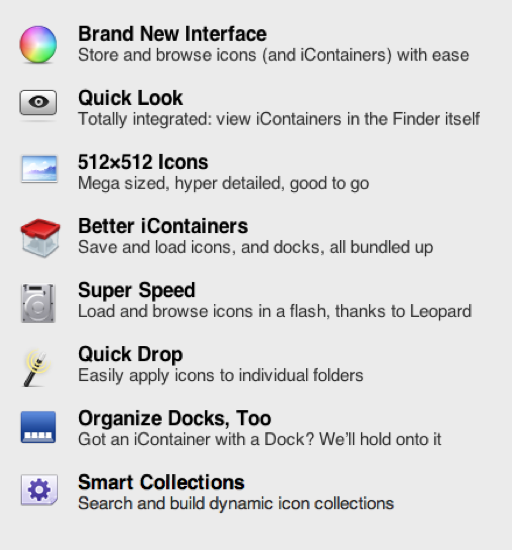
It helps if you visit the iconfactory to pick up the icons that take your fancy.
So what is pixadex then?
From the start, you could tell they were meant to be together. Pixadex, our intuitive icon organizer, and CandyBar, our icon customization utility, worked hand-in-hand to transform your desktop into a place you could call home.
Your Icons
If you use CandyBar 3 what icons sets do you use?
From their site
How do I import my Pixadex library?
It should have happened automatically — but a bug in 3.0 may have prevented it. Our apologies! Your best bet is to quit CandyBar 3, then copy the contents of:
~/Library/Application Support/Pixadex/
Into:
~/Library/Application Support/CandyBar/
I have an iContainer, now how do I change my system icons?
Double click an iContainer to import the icons into CandyBar 3. If the iContainer has any built-in system icons, a Use These Icons button will appear in the collection header. Click that button, and your system icons will automatically jump over to the “Change� area, in the right places. Hit Apply Icons, and you’re set!
If the Use These Icons button is not enabled, the iContainer may not have any system-tagged icons. That’s OK: you can still drag and drop icons up into the “Changeâ€? area one at a time. (You can also, as always, drag icons from the Finder.) Once you’re happy with your icons, just hit Apply Icons.
A collection says “Dock� next to it. What is that? Can I see it?
The “Dock� badge means that there is a Dock style stored with that collection — the iContainer author also made a dock! Cool! At this time, however, the only way to preview it is to click Use This Dock but not Apply it. We hope to improve this in a future release.
How does CandyBar work, behind the scenes?
CandyBar is not a “haxie�, and is only running when it’s open. CandyBar works its magic by replacing the special icon and graphics files that the Mac OS X system uses on your hard drive. When you restore an icon or graphic, CandyBar simply puts back the original file in its original place, good as new. That’s it!
That’s a real shame re: instructions. I would of expected better from such a well known developer.
Yep, the whole site is apoor if you ask me 🙁
Wow, I thought maybe it was just me and I was starting to get so old that things were passing me by. Thanks for letting me know I’m not the only one!
NP, us old sods have to stick together you know 🙂
Chris,
I’d be interested to know what parts of the website you found to be confusing or could be better. We’re always interested in getting feedback about our products so any specific, helpful critique you might have would be appreciated.
As for how to use the program, I assume you looked at the help file that can be viewed from the “Help” menu within CandyBar? Were there specific things in the Help that were not clear?
Thanks so much.
Gedeon
First up the screen shots. In my experience any screen shots that are at the bottom of the page tend to get overlooked. That was the case with me, I found them after I had opened the application and was wondering what to do with it 🙂
Second, the actual screen shots just keep flashing open/shut for me (Firefox, Caminio and Safari)
Third they are not that clear/intuitive to follow. I felt either a small screencast or a ‘how to guide’ would have been much more useful – especially for a fisrt time/novice Mac user.
I felt an ‘assumption’ was made that I would know what an iContainer was as well.
The ‘Secret Society’ comment was tongue in cheek to be fair, just trying to dramatise the point.
The irony is that onec you are into the applicationb it is really easy to use, it just doesn’t feel that it will be from the site, screen shots and narrative. Possibly a little too ‘techie’ a approach?
Thought I would share the response I got. I appreciate it when developers/companies take the time give feedback:
First up the screen shots. In my experience any screen shots that are at the
bottom of the page tend to get overlooked. That was the case with me, I found
them after I had opened the application and was wondering what to do with it
🙂
Panic puts all of the screen shots of their products at the bottom of their
product pages. I don’t doubt that you might have missed them given their
position, but they really are just teasers to the main information above.
Second, the actual screen shots just keep flashing open/shut for me (Firefox,
Caminio and Safari)
Hum, I’ve cc’d Cabel on this so he can test that out. If that’s broken, I’m
sure they’ll try and get that fixed up. Sorry you’re having problems there.
Third they are not that clear/intuitive to follow. I felt either a small
screencast or a ‘how to guide’ would have been much more useful – especially
for a fisrt time/novice Mac user.
I’ve in fact done a screencast of CB 3 that is available at my blog. You can
view it here:
http://gedmaheux.wordpress.com/2007/11/28/a-brief-video-tour-of-candybar-3/
I agree that we should probably do an official one that is linked here
eventually. There just has been no time right now to do that.
I felt an ‘assumption’ was made that I would know what an iContainer was as
well.
I can agree with this. iContainers have been around for over 5 years, so I
think we take for granted that people know what they are. There might be
something we can do to make it clearer about what they are and how they are
used.
The ‘Secret Society’ comment was tongue in cheek to be fair, just trying to
dramatise the point.
Okay. 🙂
The irony is that onec you are into the applicationb it is really easy to use,
it just doesn’t feel that it will be from the site, screen shots and
narrative. Possibly a little too ‘techie’ a approach?
I have to say I disagree with the notion that the CB homepage is “too
Techie”. The page’s design is about as simple as it gets and it uses plain
language (for the most part) along with large, simple illustrations to show
what’s going on. It’s friendly and approachable, or at least I thought it
was.
Appreciate the feedback, we’ll see what we can do.
Yours,
Ged
Actually that is what I mean by ‘techie’ – is hard to explain but some sites think simple = easy to understand, when in fact it works the opposite. Compared to more detailed ‘step by step’ sites it reminds me more of the kind of site that assumes a pretty high entry awareness.
Really appreciate the comments back though 🙂
Well, I’ve actually started playing around with it. It is pretty cool what it can do. Too bad it’s $29, though. I’m sure it’s worth it to the developers who had to code the thing, but at this point of time I can’t really justify being able to spend that much. Maybe if it was a MacUpdate Promo or something and was at least 50% off. But that’s just me. 🙂
Thanks for your help. I didn’t want to install Pixadex2 on my new iMac just for the sake of having it auto-copy the files over and I don’t see that text about the Application Support files on the Panic site any longer — so thanks again! (PS: I agree it’s sort of non-practical, but I’m hoping to use it as a fast browser for my mega library of IconBuffet bits.)
You are welcome 🙂
Pingback: The Mac ReviewCast » The MacReviewCast #137